Saturday, May 30, 2020

How To Compile And Run Java Programs Using Visual Studio Code

run_compile_java_program_using_visual_studio_code

In the previous article, I explained how to compile and run Java programs with CMD on Windows 10. Now, this post will provide a fast way to compile and run Java programs with Visual Studio Code.

Before I give further explanation, make sure you have read my previous article here. And please note that Visual Studio Code (referred to as VS Code) which I mean here is different from Visual Studio which can be used to create applications for various purposes of app development. VS Code is a light version of Visual Studio. VS Code is a cross-platform Code Editor created by Microsoft for Windows, Linux, and macOS. VS Code is also one of the Text Editor widely used throughout the programming world.

Download and Install VS Code


Open your browser, then navigate to the following link, http://www.code.visualstudio.com. Next, please download the VS Code according to the operating system you are using. When download is complete, install it like a normal desktop application.

How to Quickly Compile and Run Java Programs with Visual Studio Code


Open the VS Code program then type the java program code below. Then save it with the name HelloWorld.java. In this tutorial, I saved it in the D:\LearningJava directory.

public class HelloWordl {
  public static void main(String[] args) {
    //Displays a String
    System.out.println("Visit https://www.codingforjava.com");
    System.out.println("Thank You!");
  }
}

Using CMD Shortcuts
In the VS Code main view, press the F1 key or the Ctrl + Shift + P combination to open the command palette. Then you type the command and select Open New Command Prompt to open cmd which by default opens in the active directory of your Java file. Or, you can also use the shortcut Ctrl + Shift + C, and cmd will open immediately.

Using the Integrated Terminal
This method is almost the same as the previous method above. You can also use the integrated terminal to do all the commands in cmd, such as cd to change directories, javac for compile and java to run. You just need to press the Ctrl + ` (backtick) button, and the integrated terminal has appeared at the bottom of your VS Code. (note: backtick button is located to the left of the number 1)

vs_code_integrated_terminal


Using Java Debug Extensions
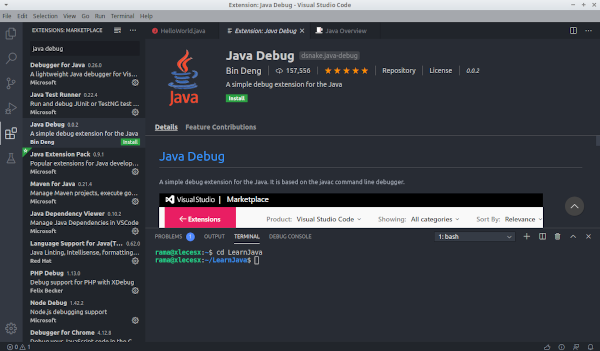
In my opinion, this is a very easy way. But you have to install the additional VS Code extension first. Here's how, press the Ctrl + P, then type ext install java-debug, then enter. Next, in your left sidebar, there will be several options available in the VS Code Marketplace. Select Java Debug published by Bin Deng (see details), then click install. Wait a few moments, click enable and restart your VS Code.

simple_java_debug_vscode_by_bin_deng


To use the extensions is quite easy, here are 3 main commands that will be used:
  • Ctrl + Shift + U = to display the output section.
  • Alt + C = Shortcut for compile (same as javac command)
  • Alt + R = Shortcut for run (same as java command)
Using Code Runner Extensions
This is one of the extensions that can be used for several other programming languages besides Java, such as C, C ++, JavaScript, Python, and so on. This is also one easy way to compile and run Java programs.

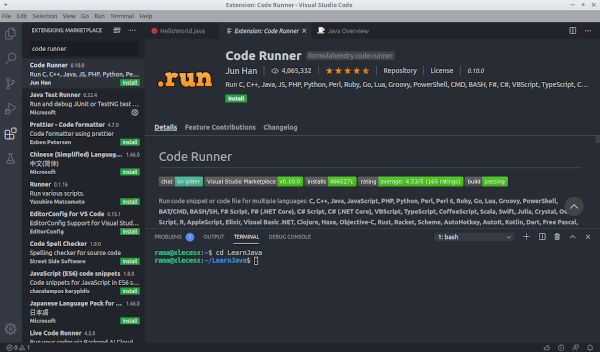
Using this method is very easy. Press Ctrl + P, then type ext install code-runner, then enter. Select Code Runner published by Jun Han (see details), then click Install and activate.

code_runner_vscode

3 ways to use these extensions include:
  • First, open the command palette by pressing F1 or Ctrl + Shift + P. Then type in run code, then enter.
  • Second, use the shortcut Ctrl + Alt + N.
  • And finally, just right-click on your workspace, and select Run Code.
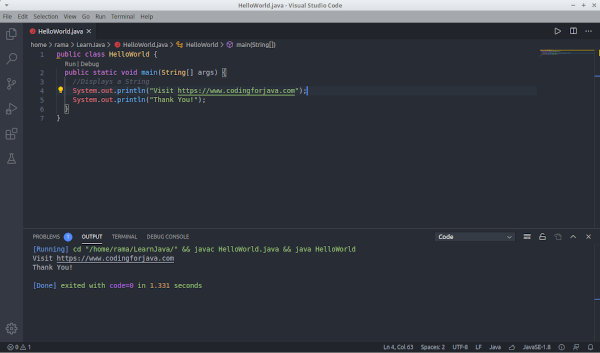
Following is a display of compiled and run Java programs using code-runner extensions.

running_java_code_vscode

So which method do you think is the easiest? Let us know if you also have other easy ways to compile and run Java programs with Visual Studio Code. If you are having difficulties, feel free to ask us through the comments at the end of the article. Hopefully, this article is useful. thanks.

Wednesday, May 20, 2020

Java Keywords, Identifiers and Access Controls

Java_Keywords

A java application is a group of classes that talk to each other by executing other class methods and sending messages by entering parameters into the method. In this section we will learn about java keywords, identifers and the concept of access control.

What is java keyword?


Java only has 44 keywords. All of these keywords belong to the Java language. So, we must use it correctly and should not be used for other purposes, for example as variable names or class names.

The following is a list of 44 java keywords:
abstract Boolean break byte case catch
char class const continue default do
double else extends final finally float
for goto if implements import instanceof
int interface long native new package
private protected public return short static
strictfp super switch synchronized this throw
throws transient try void volatile while
assert enum

Some keywords are quite familiar in all programming languages, so there is no need to explain in detail.

What is java identifiers?


Identifers are names that can be declared in java but are not part of the java keyword. Java identifers include: classes, interfaces, variables/properties and methods.

The procedure for naming identifers in java is governed by several rules:
  • The rules of the compiler to determine whether the name identifers are allowed or not.
  • Java Code Convention from Sun.
  • JavaBean naming standard.
We will discuss one by one the rules above.

The rules of the compiler about naming identifiers are very clear because there will be an error at compile time if this rule is violated.

Following are the naming rules for identifiers used by compilers:
  • All java keywords may not be used as identifiers.
  • Identifiers must begin with a letter, a dollar symbol ($) or an underscore connecting character (_). Numbers cannot be used as the first character identifiers.
  • After the first character, the next may be followed by letters, dollar symbols, connecting characters, and numbers.
  • There are no restrictions on the length of identifiers.
  • Java identifiers are case-sensitive, foo and Foo are two different identifiers.
  • The public class name must exactly match the name file .java
The following are examples of allowed identifers:
  • int _x;
  • int $y;
  • int ___17_r;
  • int _$;
  • int this_is_identifiers_name;
Here is an example identifers which is not allowed by the java compiler:
  • int 123test_test;
  • int x#;
  • int x:;
  • int x:;
  • int .point;
The Java Code Convention is a collection of "unofficial" rules made by Sun. One part of the Code Convention discusses how to name uniform identifiers. The Java Code Convention was created because research states that the effort to write code (development) is only around 20%, while 80% is used to maintain the code and add new features to the application. This prompted Sun to develop the Java Code Convention to make java code readable and maintained.

Following are some of the conventions used in the Java Code Convention:
  • Classes and interfaces always start with a capital letter. Every word always starts with a capital letter. This style is commonly called the "Camel Case". For example: Runnable, HashMap, ArrayList, and so on. Also, classes must be nouns, not adjectives or verbs.
  • Methods always start with a lowercase letter. Every word after the first letter starts with an uppercase letter. The method must be a verb to indicate that this is doing an activity/action. For example: getIndex, setIndex, println, paint, and so on.
  • Just like methods, variables using camel cases start with lowercase letters. Variables should be short, clear, sound good, and nouns. For example: index, length, width, firstIndex, and so on.
  • Constants in java are created by declaring a variable as static and final. All letters are uppercase letters separated by underscore (_) symbols. For example: FRAME_WIDTH, ERROR_MESSAGE, and so on.
The JavaBean concept was created by Sun as the basis of components in java applications. The use of JavaBean by IDEs such as NetBeans is to make Swing components visually manipulated.

Modern frameworks such as Spring and EJB have also adopted the concept of JavaBean, so the term JavaBean often appears in the documentation of this framework. Spring uses the term bean instead of JavaBean, but technically they are the same.

To understand the concept of JavaBean, there is a term called Properties. Basically, a property is an instance variable that is directly below the class, whose access modifer is private. Since it is private, a method must be made to access properties from outside the class. The method for accessing properties is usually referred to as a getter and the method for changing property values is called a setter.

The following rules for naming methods are used to access the properties (getter setter) of JavaBean:
  • If the data property type is not boolean, then the method for accessing properties starts with get. for example getWidth, getSize, getIndex and so on.
  • If the data property type is boolean, then the method for accessing properties starts with is. For example isEmpty, isRunning and so on.
  • All setter methods must start with a set. For example setSize, setIndex, setWidth and so on
  • The method name is derived from the variable name that is given the prefix get, set, or is. Camel case writing rules apply to the getter and setter methods.
  • Setter methods must be public, return void with one parameter whose data type is exactly the same as the variable data type.
  • Setter methods must be public, return data types that are the same as variable data types, and without parameters.
  • JavaBean must have a default constructor, that is, a constructor that has no parameters at all.

Java Access Modifier


Access Modifier is an "access right" given to a variable, method or class that aims to maintain the integrity of data when it wants to be accessed by other objects. The access right is given by the program maker. With the Access Modifier, we can limit which resources can be accessed by certain objects, their derivatives, or by certain methods.

In the Java programming language, there are four types of modifiers can be used for variables, methods and classes. The following is a table that briefly explains the types and levels of permissions on the modifier:
Modifier Class Package Subclass World
No Modifier  Y (Accessible)  Y (Accessible)  N (Not accessible)  N (Not accessible)
public  Y (Accessible)  Y (Accessible)  Y (Accessible)  Y (Accessible)
protected Y (Accessible) Y (Accessible)  Y (Accessible)  N (Not accessible)
private Y (Accessible) N (Not accessible) N (Not accessible)  N (Not accessible)

Public access modifier means that it can be accessed by anyone without restrictions.

Notice the example below:

The fruit class is declared public and within the com.mypackage package.

package com.mypackage;
 
public class Fruit {
 
 private String name;
 
 public void setFruitName(String fruitName) {
  this.name = fruitName;
 }
 
 public String getFruitName() {
  return name;
 }
 
 public void showMessage(){
  System.out.println("The name of the fruit is: " + getFruitName());
 }
 
}

Then the FruitTest class is in the test package as below.

package test;
//import statement to use classes outside the package
import com.mypackage.Fruit;
public class FruitTest {
    public static void main(String args []){
        Fruit fruit = new Fruit();
        fruit.setFruitName("Grape");
        fruit.showMessage();
    }
}

Note that the Fruit.class must be declared public so it can be used by the FruitTest.class where it is in a different package. If this is not the case, then the Fruit.class is considered to have a default access modifier where it can only be accessed in the same package. So an error occurs stating that the Fruit.class is "not visible".

Protected means that it can be accessed inside the package or outside the package but only through inheritance which is one of the important concepts of java programming.

Protected cannot be applied to classes, but can be applied to data fields, methods and constructors.

Consider the following simple example:

The Fruit.class resides in the com.mypackage and applies the protected modifier to the showMessage(); method.

package com.mypackage;
 
public class Fruit {
 protected void showMessage(String color){
  System.out.println("The color of the fruit is: " + color);
 }
}

Apple.class is in the test package and inherits the Fruit.class (using the keyword extends). Here the object of the Apple.class uses the method showMessage() from the Fruit.class.

package test;
 
import com.mypackage.Fruit;
 
public class Apple extends Fruit {
 
 private String color = "Red";
 
 public static void main(String args []){
  Apple apple = new Apple();
  apple.showMessage(apple.color);
 }
}

The last is a Private access modifier. This is the most restrictive modifier acces. Private means that methods and variables can only be accessed by the same class. An instance variable with a private access modifier can only be used by methods in the same class, but cannot be seen or used by other classes or objects.

Private methods can be called by other methods in the same class but cannot be called by other classes. In addition, either the method or the private variable cannot be inherited or inherited from the subclass.

Consider the example below, where the Fruit.class and the FruitTest.class are in the same package which is com.mypackage. The showMessage() method has a default access modifier. When this method is to be accessed by the FruitTest.class (different class), an error will occur stating that the method is "not visible".

package com.mypackage;
 
public class Fruit {
 
 String name = "Grape";
 
 private void showMessage(){
  System.out.println("The name of the fruit is: " + name );
 }
 
}


package com.mypackage;
 
public class FruitTest {
 
 public static void main(String args []){
  
  Fruit fruit = new Fruit();
  
  //instance variable name from the Fruit class has default modifier
  //so that it can be accessed in the same package by different classes
  System.out.print(fruit.name);
  
  //The method showMessage not visible because private modifier
  fruit.showMessage();//Error occured
  
 }
 
}

Private can be used in class constructors. However, if it is implemented, you can not create an object outside the class.

That's all about the difference between public, private, and protected modifiers in Java. Rule of thumb is to keep things as much private as possible because that allows you the flexibility to change them later. If you cannot make them private then at-least keep them package-private, which is also the default access level for class, methods, and variables in Java. You should also keep in mind that access modifiers can only be applied to members e.g. variables and methods which are part of the class, you can not make a local variable public, private, or protected in Java.

Friday, May 15, 2020

Understanding The Basics Structure And Java Syntax


basic_structure_and_java_syntax

Each programming language has a different syntax writing structure and rules. Java is a programming language developed from C language and of course it will follow the writing style of C.

When you first see a Java program, you might be wondering. What the f**k is that?

Example:

class Program {
    public static void main(String args[]){
        System.out.println("Hello World");
    }
}

Many things we do not know yet.
What the package is about?

What the class is about?

And why should it be written like that?

Therefore, we need to learn the basic syntax and structure of Java programs.

Let's get started…

Basic Structure of The Java Program


Java program structure is generally divided into 4 parts:
  • Package Declaration
  • Import Library
  • Class section
  • Main method
Let's look at an example:

// package declaration
package com.codingforjava.program;

// Import library
import java.io.File;

// Class section
class Program {
    
    // Method Main
    public static void main(String args[]){
        System.out.println("Hello World");
    }

}

Let's discuss them one by one…

1. Package Declaration
Package is a folder that contains a collection of Java programs. Package declarations are usually used when creating large programs or applications.

Example package declaration:

package com.codingforjava.program;

Normally, the package name follows the domain name of a vendor who made the program.

In the example above, I use com.codingforjava where it is the domain name of Coding For Java. The rule is that domain name is reversed, then the program name is followed.

What if we don't declare the package?

It's okay and the program will still work. But, later during production, for example when creating an Android application, we must declare the package.

2. Import Section
In this section, we import the libraries needed for the program. Library is a collection of classes and functions used in creating programs.

Example of importing a library:

import java.util.Scanner;

In the example above, we import the Scanner class from the java.util package.

3. Class section
Java is a programming language that uses the OOP (Object Oriented Programming) paradigm. Each program must be wrapped in a class so that later it can be made into an object.

If you don't understand what OOP is?

Simply understand the class as a program name declaration.

class MyProgram {
    public static void main(String args[]){
        System.out.println("Hello World");
    }
}

The above is an example of a class block.

The class block is opened with curly braces {then closed or ended with}. Inside the class block, we can fill it with methods or functions as well as variables.

In the example above, there is the main() method.

4. Main method
The main () method or the main () function are the blocks of the program to be executed first.

This is the entry point of the program.

We must make the main() method. Otherwise, the program will not be executed.

Example of the main() method.

public static void main(String args[]){
    System.out.println("Hello World");
}

The writing should be like this ...

The main() method has the args[] parameter. This parameter will store a value from the argument in the command line.

Then, inside the main () method, we have a statement or function:

System.out.println("Hello World");

The code above is a function to display text to the screen.

Statements and Expressions in Java


Statements and expressions are the smallest parts of the program. Every statement and expression in Java must end with a semicolon (;).

Examples of statements and expressions:

System.out.println("Hello World");
System.out.println("How are you?");
var x = 3;
var y = 8;
var z = x + y;

Statements and expressions are instructions that will be run by the computer.

In the example above, we tell the computer to display the text "Hello World", and "How are you?".

Then we tell him to calculate the value of x + y.

Java Program Blocks


A program block is a collection of statements and expressions wrapped together. Program blocks are always opened with curly braces {and closed with}.

Example block program:

// main program block
public static void main(String args[]){
    System.out.println("Hello World");
    System.out.println("Hello Code");

    // if block
    if( true ){
        System.out.println("True");
    }

    // for block
    for ( int i = 0; i<10; i++){
        System.out.println("Recurrence to"+i);
    }
}

The point is, if you find the {and} brackets, then it is a program block. Program blocks can also contain other program blocks (nested).

In the example above, the main() program block contains the if and for blocks.

We will learn more about blocks in:

Branching on Java.
Iteration in Java.

Comments on Java


Comments are a part of the program which is not executed by the computer.

The comment function is:
  • Give information on the program code.
  • Disabling certain functions.
  • Make documentation, etc.
Writing comments on java is the same as in C language using:

Double slashes (//) for single-line comments;
Star slash (/*...*/) for long comments.

Example:

public static void main(String args[]){
    // this is a one-line comment
    System.out.println("Hello World");
    
    // comments will be ignored by the computer
    // The following functions are deactivated by comments
    // System.out.println("Hello World");

    /*
     Comment
     with more than
     one line
    */
}

Strings and Characters


A string is a collection of characters. We often know it as a text.

Example string: "Hello world"

Strings in Java must be enclosed in double quotes as in the example above. If it is enclosed in single quotes, it will become a character.

Example: 'Hello world'.

So please make it a concern:

Double quotes ("...") to make a string;
While single quotation marks ('...') to make a character.

Case Sensitive


Java is Case Sensitive, meaning uppercase or capital letters and lowercase letters are distinguished.

Example:

String name = "My Name";
String Name = "myname";
String NAME = "yourname";

System.out.println(name);
System.out.println(Name);
System.out.println(NAME);

The three variables above are three different variables, although they all use names as their variable names.

Many beginners are often wrong on this matter. Because they cannot distinguish which variables use uppercase letters and which use lowercase letters.

If we make a variable like this:

String myCar = "Mercedes-Benz";

Then we have to call like this:

System.out.println(myCar);

Not like this:

System.out.println(mycar);

Note, the letter C is capitalized.

Case Writing Style


The case styles used by Java are camelCase, PascalCase, and ALL UPPER.

The camelCase writing style is used for variable names, object names, and method names.

Example:

String myName = "Howard";

Then for PascalCase, it is used for writing class names.

Example:

class HelloWorld {
    //...
}

Note the name of the class, we use capital letters in the beginning, and capital letters in the letter W to separate the two prefix.

As for camelCase, the front letters use lowercase letters, and the next prefix uses uppercase letters.

// this is camelCase
learnJava

// this is PascalCase
LearnJava

Then, writing ALL UPPER or all capital is used to create a constant name.

Example:

public final String DB_NAME = "javacoder";

For writing two or more syllables, ALL UPPER is separated by the bottom line or underscore (_).

Is it okay I write about anything?

For example for the class name using ALL UPPER?

It's okay, the program won't get an error. But the program code will look dirty and out of the guide line that has been set.

Those are some rules of writing Java syntax and basic program structure that should be known. Happy coding ...

Wednesday, May 13, 2020

10 Best IDE for Java Development

Best_IDE_For_Java_Develoment

IDE or Integrated Development Environment is a software application that provides comprehensive facilities for computer programmers during the software development process. By default the IDE has:
  • Source code editor.
  • Debugger.
  • Build automation.
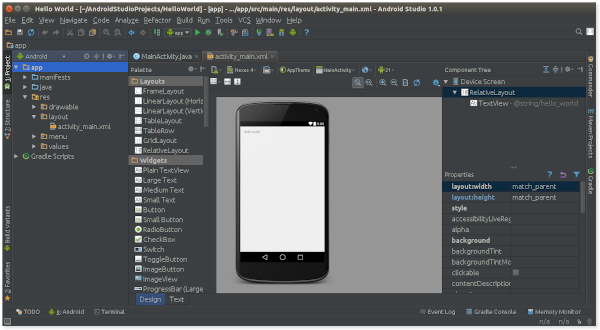
IDE can provide convenience and speed for programmers. Sometimes choosing which IDE to use is time-consuming. As an option, you can use notepad or use an IDE with various features such as NetBeans, Eclipse Java IDE, JDeveloper, Intellij, Android Studio, JEdit, or MyEclipse.

Which IDEs Should Be Used?

The real answer is based on programming needs, budget and desires. However, beginners can use the most popular IDEs such as NetBeans, Eclipse and even BlueJ.

Because Java is widely used in various fields such as software development, android, networking, system development, education, games development and so on, therefore each IDE offers different features. Usually, an organization or professional developer will spend enough time evaluating development tools before deciding which to use.

For example, Intellij IDEA and MyEclipse are commercial, feature-rich Java development tools for J2EE enterprise-grade application development. Meanwhile, DrJava, JGrasp and BlueJ only offer minimum features making it suitable for students or beginners. The spread of android applications has also produced a more specific IDE for this purpose, for example Android Studio which offers various features for developing mobile applications quickly.

So, here are 10 of the best Java IDEs that are suitable for modern java development, offering convenience and speed for both free and commercial versions.

Netbeans

Netbeans_IDE

NetBeans was first introduced in 1997 as a student project in the Czech Republic. NetBeans is free, open source, and multiplatform IDE support for Windows, Linux, Mac and Oracle Solaris. It is widely used by professional developers for developing enterprise, web, desktop and mobile applications.

NetBeans IDE features:
  • Analysis.
  • The design.
  • Coding.
  • Profiling.
  • Testing.
  • Debugging.
  • Compiling.
  • Running.
  • Deploy application.
NetBeans supports many programming languages. NetBeans also comes with support for Weblogic and Glassfish, making it a competent platform for J2EE application development. NetBeans fully supports Dependency Injection, contexts, Facelets (JavaServer Faces), RichFaces, ICEfaces, EJB webs, and so on.

NetBeans is very suitable in terms of development with persistence of API, JSP, spring, struts, servlets, web services and Hibernate frameworks. Integrated GUI builder with a drag and drop system using the Swing platform.

Moreover, this IDE can also be used for Java Card development projects, supporting Maven and Ant systems.

You can download NetBeans here.

IntelliJ IDEA

IntelliJ_IDEA

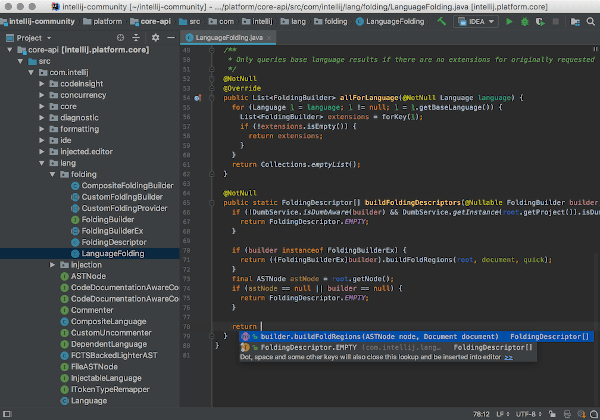
IntelliJ IDEA is a full-featured IDE for Java EE developers and general Java development. This IDE comes from JetBrains which has been in the business development tool for the past 15 years with great success.

IntelliJ IDEA is an IDE for professionals and comes in two editions, the free edition (community) and the ultimate edition targeting enterprise users.

The free edition comes with many features for building Android applications as well as JVM applications. Google Android Studio as the official Android development platform is based on the free community edition of IntelliJ IDEA. The Ultimate Edition comes with the most modern set of features for web application development and enterprise Java EE.

The free community edition features support for Java, Kotlin, Groovy, Scala, Android, Gradle, SBT, Git, SVN, Mercurial and CVS. Furthermore, basics functionality such as code completion, intelligent refactorings, deep static analysis, debuggers, test runners are also included in the free community edition.

Whereas the ultimate edition carries additional features such as:
  • Spring Java MVC framework, Spring Security, Spring Boot, Spring Integration.
  • Support for frameworks such as Node.js, Angular, and React.
  • Support for web development languages ​​such as javascript, typescript, CoffeeScript.
  • Java EE support includes JSF, JAX-RS, CDI, JPA.
  • Support Grails, GWT, Griffon, and Vaadin.
  • Version control with Team foundation server, Perforce, Clearcase, and Visual SourceSafe.
  • Deployment is supported by almost all servers including Tomcat, TomEE, Glassfish, JBoss, WildFly, Weblogic, WebSphere, Geronimo, and Virgo.
  • Build tools including Gulp, Grunt, Webpack, and NPM via the plugin.
You can download the IntelliJ IDEA Java IDE community edition (free).

Eclipse

Eclipse_IDE

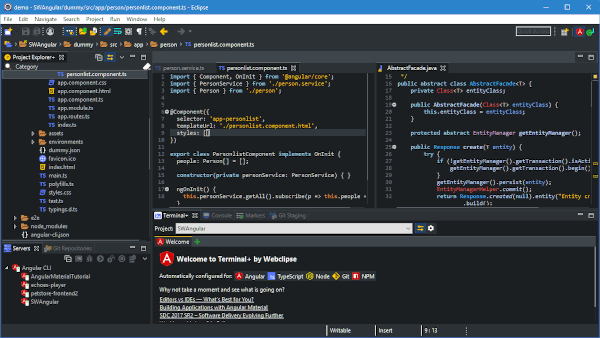
Eclipse is a big name in the world of Java development. Almost all Java developers have used Eclipse at some point in their careers.

Eclipse has its ecosystem with a large community, complete documentation, and many plugins to make Java development easy. Programmers use Eclipse to develop mobile, desktop, web, enterprise, and embedded system applications.

Eclipse is mostly written using the Java language and available free under the Eclipse public license. You can run Eclipse on Windows, Mac OS X, and Linux.

Eclipse has the advantage when it comes to an integrated development environment. Though, it is best known for Java, Eclipse can be used with many other programming languages. This is the best free Java IDE available out there.

Eclipse is extendable and there are many free and commercial Java IDEs with Eclipse, such as MyEclipse, Orion, and RAD from IBM.

You can download Eclipse here.

JDeveloper

JDeveloper_IDE

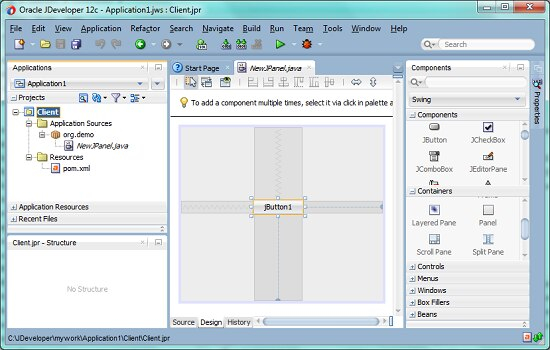
JDeveloper is another open-source Java IDE that comes from Oracle.

This IDE supports full development including modeling, coding, debugging, monitoring, and deployment. JDeveloper is suitable for developing Java EE applications, databases, web services, mobile and integrates well with Oracle Fusion components.

JDeveloper integrates with most version management tools and makes team development easier. JDeveloper also integrates with Oracle cloud services for team collaboration and detailed project development tracking.

This Java IDE equipped with an integrated SQL Developer and PL / SQL query editor and is very helpful in building, browsing and reporting relational databases. JDeveloper is the official development environment for the Oracle Application Development Framework (ADF).
With JDeveloper you also get an embedded WebLogic server making it easy to run, test and debug Java EE applications right in the development environment.

From a web development perspective, JDeveloper has a built-in editor for HTML, CSS, and JavaScript. You also get a visual editor for JSF and also JSP.

SOAP and REST development is assisted by visual WSDL editors, generator schemes and service testing features.

Download JDeveloper Free IDE.

Android Studio

Android_Studio

Android studio is the perfect tool for Android development. It is the official integrated development environment for Android released in 2014 by Google to replace Eclipse Android Development Tools (ADT).

Android Studio is built based on the IntelliJ IDEA community edition available free as an open-source Java IDE under the Apache License.

Currently, Android holds about 71 percent of the mobile app market. Most Android applications are written in Java. This makes Android Studio one of the most widely used IDEs to develop Android applications.

Android Studio features include:
  • Instant run will have a direct effect on any code changes in the currently running application.
  • Rich emulator feature to simulate applications for android wear, cellphones, tablets, and Android TV devices.
  • Intelligent Code Editor.
  • Gradle
  • Integration with Subversion and GitHub for version control.
  • Reused application code and templates.
  • Support for testing frameworks and tools such as JUnit 4 and Firebase Test Lab.
  • Firebase Messaging and Google Endpoints for cloud integration.
  • Intuitive editor.
  • Set of icons for Google material design.
  • GPU profiler for graphical debugging.
You can find out more and download the Android studio here.

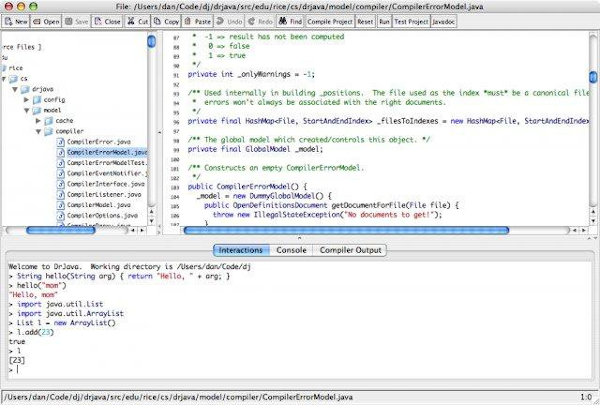
DrJava

DrJava_IDE

DrJava is a lightweight IDE for java developed by the JavaPLT team at Rice University, Houston, Texas. Currently, DrJava is continuously developed by Sun Microsystems, Inc., the Texas Advanced Technology Program, and the National Science Foundation.

DrJava is not intended to compete with heavyweight enterprise IDEs such as Eclipse, NetBeans, IntelliJ, or JDeveloper. This Java IDE is intended for students and novice developers to learn and create school/research projects.

The biggest advantage of DrJava is quick to set up and start writing Java code in a short amount of time because of the availability files to download such as Jar files, Windows App, and also Mac OSX App. So it is very popular among students all over the world.

Is DrJava the best IDE for learning Java?

Well, it all depends on the needs of each person. Here, DrJava has a strong use in education.

Read more about DrJava here.

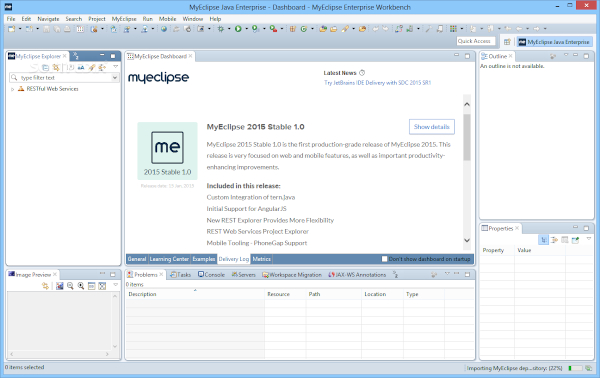
MyEclipse

MyEclipse_IDE

MyEclipse is another best commercial Java IDE built through the open-source Eclipse IDE by a company called Genuitec based in Texas, United States.

MyEclipse is used by many companies and its truly a Java EE Enterprise development platform that produces the best combination of Java EE and new technology.

The main features of MyEclipse include:
  • Support for a variety of frameworks including Springs, Hibernate, jQuery, Cordova, JPA and JSF
  • Access to Eclipse plugins including plugins such as ClearCase, find bugs, tooling graders, subversive, etc.
  • Maven project structure and Built-in launch commands
  • Embedded Derby and Tomcat database connectors for all major databases including WebSphere, Glassfish and WebLogic
  • Tools include Visual ER, JPA, Hibernate and POJO models
  • Spring Scaffolding, Visual Spring Editor and wizards
  • IDE for building applications for WebSphere and Liberty profile servers
  • JSjet is already included for Enterprise web development
  • Tools for generating and performing Rest tests based on web services
  • Live preview for HTML, CSS, and JSP
  • Gerrit workflow integration for team collaboration
MyEclipse comes in Standard and Professional Editions. The standard edition includes features such as database tools, support for Spring, JSF, persistence tools, visual web designers, etc.

Some features included in the Professional Edition are Android & iOS support, mobile web simulators, Image Editor, UML modeling, Rest inspect, Reporting, and JQuery Mobile Templates.

Find out more about MyEclipse here.

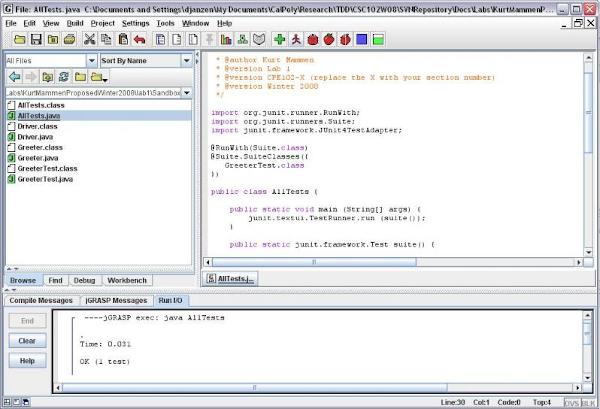
jGrasp

jGrasp_IDE

jGrasp is a free IDE for Java. This IDE is best suited for auto-generation visualization of code as a Control Structure Diagram. jGrasp is quite lightweight IDE written in the Java language runnning on all operating systems with JVM (Java Virtual Machine).

jGrasp is the creation of people at Auburn University. The development is supported by a grant from the National Science Foundation.

jGrasp is quite popular among students, campus communities, and universities. At present, jGrasp is used by more than 380 institutions for teaching and training purposes.

You can read more about jGrasp here.

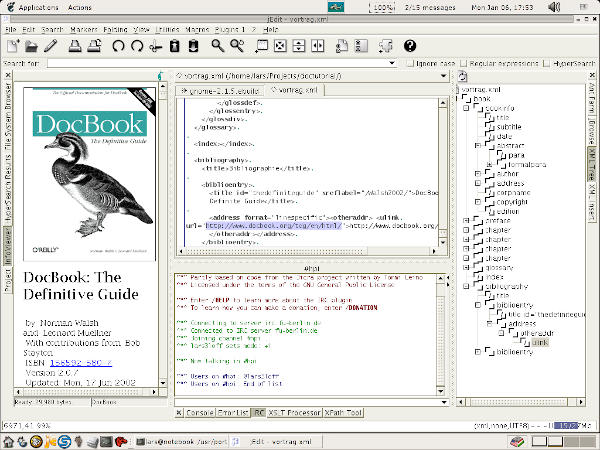
JEdit

JEdit_IDE

JEdit is a Java editor and open source IDE offers almost all the features required for efficient programming. JEdit is an Editor that can be transformed into a feature-rich IDE with additional use of plugins.

Some plugins needed to convert JEdit to Java IDE include AntFarm, Java Style, JBrowse, JCompiler, JIndex, JunitPlugin, ProjectViewer, and Swat.

JEdit was originally created by Slava Pestov in 1998 and is available for free download with a license from the GPL. JEdit is written purely using the Java programming language and can be run on any platform including Unix, VMS, Mac OSX, OS/2, and Windows.

Read more about JEdit here.

BlueJ

BlueJ_IDE

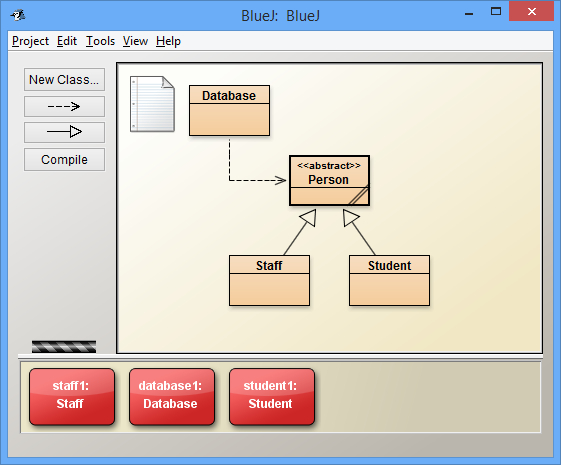
BlueJ is another lightweight Java Editor for beginners used by millions of students and novice programmers around the world to learn object-oriented programming, and Java in general. BlueJ can be used for small scale projects where you don't need to manage a lot of resources or collaborate between teams. The user interface is easy to use and intuitive allows beginners to start quickly without feeling burdened.

One of BlueJ's main features is the Shell/REPL graphic for Java, where you can interact with objects, check object values, pass objects as parameters, call Java methods, and expressions quickly without compilation.

BlueJ was developed at the University of Kent and supported by Oracle. Historically this IDE was developed and released by Michael Kölling in 1999.

The BlueJ distribution is available with a GNU license and can be installed on Ubuntu/Debian, Mac OSX, Windows, and Raspbian Linux. The Jar JDK BlueJ installer jar file is available for other operating systems.

You can find out more about BlueJ here.

Tuesday, May 12, 2020

What Is Java Virtual Machine? Understanding JVM


Java_Virtual_Machine

Java language has its way to be run in a system. Unlike the flow of programming languages in general, to run Java code, the system must have a JVM (Java Virtual Machine) installed.

Understanding Java Virtual Machine

Java Virtual Machine is a special application installed to run Java programs on a computer or system.

Java_Virtual_Machine_Diagram
The definition above is "simple version", because the Java Virtual Machine (we just call it a JVM), in theory, it's not only able to run applications written in the Java language, but also several other programming languages based on "Java bytecode".

Generally a desktop programming language has the following workflow (we use the C language example):
  • Write the program code using a text editor, then save for example as hello_world.c.
  • Compile the hello_world.c file into an object file named hello_world.o.
  • Perform a linker process, where the hello_world.o file is processed and produces an executable file named hello_world.exe (if it is intended for Windows operating systems).
  • The hello_world.exe file is ready to run.
The workflow above is a bit problematic in terms of portability. I mean, the hello_world.exe application can only run on Windows operating systems. If we want to run the same application on a Linux or Mac computer, the program code must be recompiled for each operating system.

The Java language development team wants to overcome this problem so that the Java language code is compiled only once and can run on all operating systems. Following is the process flow of creating and running programs written in Java:
  • Write the program code using a text editor, then save for example as hello_world.java
  • Compile the hello_world.java file into a byte code-named hello_world.class
  • The hello_world.class file can be run on all computers as long as the computer has a Java Virtual Machine installed.
The byte code in step 2 is similar to object code in other programming languages, but specifically the byte code is used to refer to object code that belongs to the Java language.

Components of JVM
As compilation target and virtual machine, JVM try to mimic our computer in its architecture, such as by having memory management system and register.
JVM has 3 essential components:
  • Class Loader
  • Runtime Data Area
  • Execution Engine
The portable java bytecode are stored in our computer as files with *.class extension. Therefore the first component of JVM is responsible for loading all *.class files, hence why it’s called the class loader. It is also responsible for verifying whether the supplied bytecodes are valid and resolving all static references.

Runtime data area responsible for storing all classes, objects, methods, variables and its data. Basically this is the component that mimic our computer memory. But it also have PC registers as sub-component, which stores the address of current executing instruction (essentially similar to register in our CPU).

Lastly and perhaps the most important, execution engine responsible for executing the bytecodes. It contains an interpreter, just-in-time compiler (abbr. JIT compiler) and garbage collector.

You may wonder why JVM has both compiler and interpreter. On early version of JVM the execution engine only has interpreter to execute the bytecode. The JIT compiler was added later to increase performance. Basically the JVM can now dynamically increase performance by identifying methods that are used often in our program. JVM then ask the JIT compiler instead to compile those methods instead of re-interpreting it every time. This is why JVM performance benefits quite significantly from warm-up time.

Programming Languages Running on the JVM

Clojure
Designed by Rich Hickey, Clojure is a programming language similar to Scheme and Lisp that runs on the JVM. Clojure has quite a lot of interest among users of functional programming languages.

At first, Rich Hickey wanted the modern Lisp programming language for functional programming. He also wants a concurrent feature in that language. So at that time, Rich developed dotLisp, a Lisp project implemented on the .NET Framework. But finally, Rich developed Clojure which was implemented on the JVM. One well-known web framework designed using Clojure is Noir. The following is an example of the Clojure source code quoted from Wikipedia:

(let [i (atom 0)]
  (defn generate-unique-id
    "Returns a distinct numeric ID for each call."
    []
    (swap! i inc)))

Groovy
Groovy is a dynamic programming language similar to Python, Perl, Ruby, and Smalltalk that runs on Java. Groovy can interact with other Java libraries, and can create a blend of Java and Groovy.

Groovy has a famous web framework, Grails. Groovy was developed by James Strachan. Groovy is managed by a company called Pivotal. If you use Netbeans for the first time, you can see there are options for making an application with Groovy. Here is an example of the Groovy source code quoted from Wikipedia:

class AGroovyBean {
  String color
}

def myGroovyBean = new AGroovyBean()

myGroovyBean.setColor('baby blue')
assert myGroovyBean.getColor() == 'baby blue'

myGroovyBean.color = 'pewter'
assert myGroovyBean.color == 'pewter'

Jython
Jython is the JVM implementation of the Python programming language. It is designed to run on the Java platform. A Jython program can import and use any Java class. Just as Java, Jython program compiles to bytecode. One of the main advantages is that a user interface designed in Python can use GUI elements of AWT, Swing, or SWT Package. Some standard Python libraries cannot be accessed in Jython.

Jython was first developed by Jim Hugunin, Barry Warsaw, Samuele Pedroni, Brian Zimmer, and Frank Wierzbicki. The following is an example of Jython source code quoted from Jython Cookbook:

from javax.swing import JButton, JFrame

frame = JFrame('Hello, Jython!',
            defaultCloseOperation = JFrame.EXIT_ON_CLOSE,
            size = (300, 300)
        )

def change_text(event):
    print 'Clicked!'

button = JButton('Click Me!', actionPerformed=change_text)
frame.add(button)
frame.visible = True

JRuby
JRuby was developed by Charles Oliver Nutter and Thomas Enebo. Initially JRuby was developed on Sun Microsystems but then moved to Engine Yard in 2009. In May 2012, the JRuby duo moved to Red Hat and focused more on developing JRuby. Two other contributors are Ola Bini and Nick Sieger. One of JRuby's advantages is the presence of multiple virtual machine collaboration features. The following is an example of the JRuby source code quoted from Wikipedia:

require 'java'

frame = javax.swing.JFrame.new
frame.getContentPane.add javax.swing.JLabel.new('Hello, World!')
frame.setDefaultCloseOperation javax.swing.JFrame::EXIT_ON_CLOSE
frame.pack
frame.set_visible true

Scala
Scala is claimed to be a simpler programming language compared to Java. One well-known web framework built using Scala is Lift and Scalatra. Scala was created by Martin Odersky. Martin wants a powerful functional programming language and also runs on the JVM. Besides, Martin was also involved in the development of the JVM with James Gosling and other JVM development teams. The following is an example of the Scala source code quoted from Wikipedia:

// Scala
class Point(
    val x: Double, val y: Double,
    addToGrid: Boolean = false
) {
  import Point._

  if (addToGrid)
    grid.add(this)

  def this() = this(0.0, 0.0)

  def distanceToPoint(other: Point) =
    distanceBetweenPoints(x, y, other.x, other.y)
}

object Point {
  private val grid = new Grid()

  def distanceBetweenPoints(x1: Double, y1: Double,
      x2: Double, y2: Double) = {
    math.hypot(x1 - x2, y1 - y2)
  }
}

The above programming language is among the many other programming languages implemented on the JVM. According to the List of JVM Language article on Wikipedia, there are around 60 programming languages developed on top of the JVM.

With a variety of specific characteristics and targets, JVM is the basis for other programming language developers to create their programming languages by relying on JVM as the foundation. So JVM isn't just for Java

Is Java Easy To Learn? - 7 Reasons Why Learning Java

Is_Java_Easy_To_Learn

When someone wants to learn a programming language, surely it must start by choosing what programming language to learn. You can drop your choice on Java. Why? Because Java is one of the best programming language.

Java as a programming language has existed and survived for 20 years. Java has proven that from day to day become more advanced. Although admittedly, there are some times where java programming development is slowing down, but the effect it comes with better performance. Changes to Enum, Generic, and Autoboxing in Java 5, as well as advances in performance in Java 6, and the choice of Java as a programming language for android by the Google, have made Java a popular programming language.

When you compare which programming language is the best? What programming language should I learn? Should I learn Java? etc.

So it will depend on your definition of the best programming language, when it comes to popularity, there is no doubt that Java is on top, even if compared to C, which has existed for 50 years. Java offers many opportunities in terms of employment. You can develop Java cores based on server applications, J2EE web and enterprise applications, and can even go into Android-based application programming.

Reasons to Learn Java For Beginners

There are several reasons that can be considered why Java is a programming language worth studying in terms of opportunities, development and support from various communities.

1. Java is easy to learn.

Wow ... really?

When you see Java syntax, most use English. The syntax of the Java programming language is the set of rules defining how a Java program is written and interpreted. The syntax is mostly derived from C and C++. Unlike in C++, in Java there are no global functions or variables, but there are data members which are also regarded as global variables.

This makes Java programs easy to read and also easy to learn. As one of the best programming languages, Java is designed to be easy to understand, and produce products quickly through this language.

2. Java is an object-oriented programming language

During this time, there are two kinds of programming languages, namely, procedural and object-oriented. The downside of a procedural language is difficult to develop a large-scale program.

Therefore object-oriented programming was created. Once you know and understand the concept of object-oriented programming regarding Abstraction, Encapsulation, Polymorphysm and Inheritance, then you can use it all with Java.

3. Have an outstanding IDE.

Believe it or not, Eclipse and Netbeans have had a crucial role to make Java as one of the best programming language. You can do the coding using the IDE with convenient, especially if you have been coding in DOS Editor or Notepad.

This IDE not only helps in the code completion process, but also in its ability to detect bugs, which is one of the important things in program development.
IDE has made a breakthrough by making Java development easier, faster and clearer.

Apart from the IDE, the Java platform also has some other useful tools like Maven and ANT to build Java applications, the decompilers, JConsole, Visual VM to monitor the use of Heap and others.

4. Rich API and outstanding documentation support from Javadoc.

One factor that makes Java successful is it has a rich API, and more importantly the API comes with a Java installation by default. Java provides APIs for I/O, networks, utilities, XML parsing, database connections, and so on.

Whatever is left behind is covered by open source libraries such as Apache Commons, Google Guava, and so on.

Furthermore there is Javadoc, which makes you learn Java easier. Javadoc also become a reliable reference when you perform coding. Javadoc is also a document that provides a lot of information about the Java API. Without documentation from Javadoc, maybe Java will not be popular. Javadoc also makes Java one of the best programming languages.

5. Very complete open source library.

Open source libraries ensure that Java can be used anywhere. Apache, Google and many other organizations have contributed in establishing many libraries, which in turn make Java development easier, faster and more effective.

There are several frameworks such as Spring, Struts, Maven ensuring java development using the best way, promoted by the use of design patterns and is supported by Java developers to give the best results.

6. Support from the community.

It is undeniable that the community has made Java a powerful programming language. No matter how good the programming language is, it won't last if there is no community to share knowledge and ready to help peoples in trouble.

Java has a lot of active forums, stackoverflow, organizations that provide open source and several groups of Java users to help everything. If you are a beginner, then there is a community to help beginners learn Java. Similarly, if you are in an advanced level or even an expert.

Furthermore, many programmers contribute as a tester. Expert programmers provide free advice on various Java forums and stackoverflow, so that for beginners will provide a more confident feeling.

7. Java is free and everywhere.

Everyone likes free ones. These factors make Java more popular among programmers as an individual or organization that will develop the strategic program.

Java is everywhere. That's right, Java is on mobile, desktop, cards, and so on.

The number of Java programmers is also a reason why many organizations choose Java as a programming language for the new development compared to other programming languages.

Well, that's 7 reasons why you should learning java programming.